E-commerce
August 13, 2026
How should I structure apparel variants, sizes, colors, and SKUs in Shopify to keep inventory clean for unisex items for the best options? Use one product per style, set size and color on this product as variant options (both of which change the inventory), give each sellable combination a unique SKU, and put unisex clothing into both men's and women's collections without cloning the product. Cloning "the same hoodie" into two SKUs is how the warehouse picks the wrong bin and ads sell stock that is already sold.
Shopify's rails are tight on purpose. Adding variants allows up to three options and up to 2,048 variants per product (increased from 100 in October 2025). Inventory lives on the variant. Gender is not a fourth option on a true unisex item. Google Merchant Center wants gender as male, female, or unisex, plus size and color for apparel. Category metafields on the Shopify taxonomy are how these fields remain consistent in the admin in 2026.
The apparel setup comes down to four decisions: SKU format, unisex vs. two cuts, when to split color into separate products, and when Plus combined listings help. Catalog theory lives in ecommerce online catalog. Daily inventory operations live in Shopify inventory management.
What you will clarify: which dimensions are options, which are collections, and which are metafields.
What you will be able to do: build a unisex tee in the Shopify admin with clean SKUs, then merchandise it in two departments.
To connect: adding products in Shopify, metafields and metaobjects and advanced inventory.
The best options are the ones the warehouse staff can pick without a decoder ring. Pretty swatches that hide duplicate SKUs are not the best options.
Summary
What is a variant, a SKU, and a collection on an apparel product?
A product is the style (the hoodie). A variant is a selectable and stocked combination (Black / M). A SKU is your internal ID for that combination. A collection is a storefront grouping, not a second inventory record.
What should be a variant
Anything that changes what you pick from the shelf: size, colorway, and sometimes length or fit if they are different SKUs. Customers choose option values on the product page. The cart holds a variant. If two buyers can purchase "the same listing" and receive different physical items, these items need different variants (or different products).
What should not be a variant
Department: Unisex / Men / Women as navigation. Use collections.
Marketing Season: FW26. Use tags and automated collections.
Care Copy: metafields, not an option dropdown.
A second gender clone: the same fit listed twice. This doubles inventory levels and splits sales history.
Shopify Admin Path
Products > add or open the style > Variants. Add option names (Color, Size). Shopify generates the matrix. Then enter SKU, barcode, price, and inventory on each variant row. Do not leave the SKU blank "because the title is unique." Titles are not barcodes.

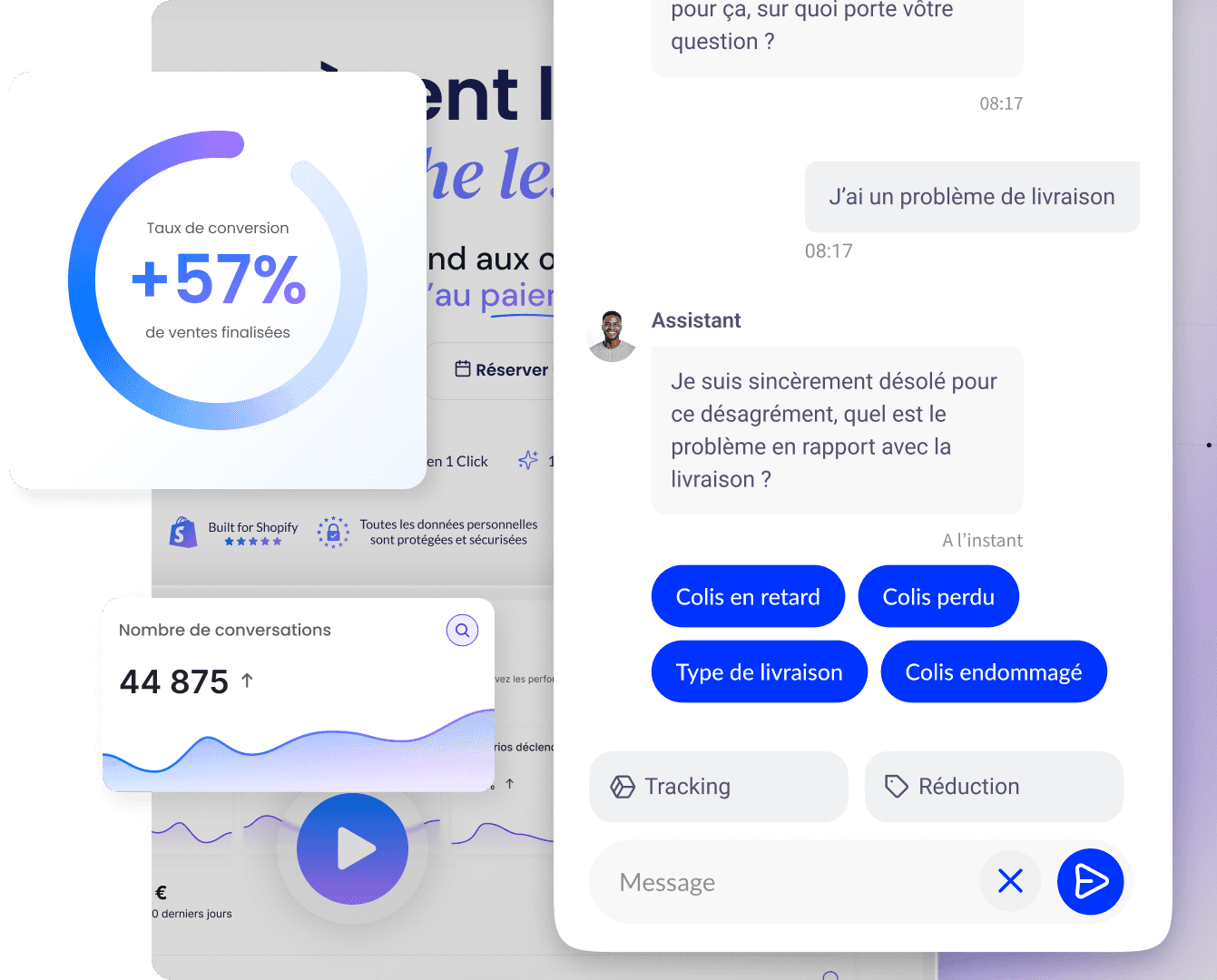
Convert over 2,000 customers on average per month with Qstomy.
The world’s 1st Shopify AI dedicated to customer conversion


Empowering 200+ e-commerce merchants
Which product options for size, color, and style?
You only have three product options. Apparel people instinctively want size, color, style, material, and gender. That makes five. The best options are the three that affect pick and price.
Default unisex apparel matrix
Option 1: Color: Black, Bone, Navy. Drives the images and often the ads.
Option 2: Size: XS, S, M, L, XL, XXL (a single scale). Drives the inventory levels.
Option 3 (only if needed): Fit or length: Regular / Tall, or Crop / Standard. Not "unisex / women".
Size + color on a single product is the usual clean setup: multiple sizes and colors, one parent, options on a single product. Six colors times six sizes is 36 variants. Well under 2,048. Also well under the Liquid theme cap of 250 variants.
When the third option is a trap
Adding Style (crew vs v-neck) as option 3 is fine if they share the same size chart and the same warehouse family. If crew and v-neck have different BOMs, split into two products. Size, color, style as three options is the classic size color style matrix. A fourth dimension (material) belongs to a new product or a metafield, not a hidden fourth dropdown.
Hard limits to design around
3 options: Add variants.
2,048 variants: changelog, October 15, 2025.
250 media per product: Help: each variant can use a media from this list.
250 variants in Liquid product.variants: high-variant themes must defer loading.
Considerations beyond ~100 variants: third-party themes, certain apps (Stocky, legacy Order Printer), sales channels. Read the Help before promising "unlimited colorways on a single PDP".
How to structure unisex items for a single-unit inventory?
Unisex is a product fact, not a merchandising trick. If the garment has one cut and one size chart, it is one product. If you have graded a men's block and a women's block, it is two products. Calling both "unisex" to reuse photos will destroy customer satisfaction regarding the fit.
True unisex (recommended default)
One product: one title, one description, one size chart metafield labeled unisex.
Variants: Color and Size only.
Target gender category metafield: unisex, via Shopify's apparel taxonomy, not a variant option.
Collections: add the same product to Unisex, and to Men and Women if those menus exist. Membership is not a SKU.
Google gender: submit
unisex. Google's example is a unisex T-shirt, size M.
Fake unisex (to be avoided)
Two products, same SKU: inventory levels fight each other.
Two products, different SKUs, same box: pickers guess. Returns skyrocket.
Gender as option 3 on a product: buyers pick "Women / M" and "Men / M" as if they were different units when they are not. You have invented inventory confusion.
Two cuts sharing a story
Men's tee and women's tee: two products, two SKU prefixes, two size scales (S–XXL vs. numeric or 0–12). Link them in the theme ("also available in women's fit") with a product reference metafield. Combined listings are for colorways of a style, not for merging two fits into one PDP, unless you really want a page with a Fit option that maps to different child products (Plus). Most brands should keep two PDPs.
How to format SKUs for sizes and colors?
Shopify does not mandate a SKU string. Your WMS does. Pick a pattern and never improvise in the Shopify admin.
A pattern that remains clear
STYLE-COLOR-SIZE, for example HDY01-BLK-M. STYLE is the shared design. COLOR is a 3-letter code. SIZE is the option value. Each variant SKU is unique. The parent product does not have its own SKU that people order against.
Same style, new color: new COLOR token, same STYLE. New variants on the same product, or a new product-color if you split by color (see below).
Barcode / GTIN: one per sellable variant when the manufacturer has issued one. Do not reuse a GTIN across sizes.
Never recycle a SKU: the retired Black / S keeps its dead SKU. The new season Black is a new STYLE or a suffix, not HDY01-BLK-S again.
How this keeps inventory clean
Cycle counts, transfers, and 3PL files key on the SKU. If "unisex black M" and "men black M" share a barcode, your inventory levels are a lie. If each colorway has its own free-text SKU invented in a spreadsheet, the CSV import will create duplicate variants from an extra space. Lock down the pattern in a SOP. Import with this SOP.
CSV and bulk edits
Option names must match exactly: Size, not size . After CSV import, spot-check a unisex style: variant count = colors × sizes, each SKU unique, inventory in the correct location. Shopify documents rate limits when the shop's total variants are very high (Help: 10,000 new variants per day before a cap; Plus differs on certain points). Split large apparel drops.
When does color remain a variant vs a separate product?
Color is the usual fork: keep it as an option, or promote each colorway into its own product.
Keep color as a variant (most unisex brands)
One PDP, swatches, one URL, one review stack. Best when the color count is modest and you don't need each color to rank separately. Assign one media per color. Size options share these images. Inventory remains a matrix. This is the user-friendly default in the Shopify admin.
Split color into products
Use when each colorway needs its own gallery, copy, or Shopping title, or when color × size × fit would blow past theme or app limits. Each color-product only has Size variants. The SKU still uses STYLE-COLOR-SIZE. Stock is still one physical SKU per row. You merchandise color on collection pages as separate cards.
Combined listings (Plus)
Combined listings connect separate products into a single storefront listing, usually by color. Child products keep their title, URL, and gallery. Shoppers see a PDP with extra option values. Shopify.dev indicates that combined listings are Shopify Plus only, with up to 60 child products, three options on the parent, and up to 2,000 variants across children. You cannot nest combined listings. Non-Plus stores approximate this with a theme swatch that links sibling products via metafield. Do not duplicate inventory to fake a combined listing.
For unisex, combined listings are a colorway tool, not a gender tool. Do not make "Men" and "Women" children of a parent unless they are truly different SKUs that you want on one page.
How do category metafields and Google gender align with unisex?
Assign a Shopify product category (for example, Apparel & Accessories > Clothing > Clothing Tops > Shirts). This unlocks category metafields: size, color, fabric, target gender, age group, and related attributes. Connect option values to these metafields when Shopify offers a migration, so that renaming "Graphite" once updates the swatches.
Target gender for unisex
Set target gender to unisex on the product (or the category metafield), not as a variant. Google's gender attribute must be male, female, or unisex in English. Required for apparel in several countries (Google lists Brazil, France, Germany, Japan, UK, and US among the required cases). If you really have men's and women's versions, these are different products or gender-identifying variants with a shared item group ID in the feed, not a unisex SKU.
Size option values
Pick a sizing system per product. Unisex tees: XS–XXL. Do not mix "M" and "12" on the same option. One-size items: a single Size value of "One size" still creates a variant, which keeps inventory tracking identical to the rest of the catalog. Empty "Default Title" variants make one-size products look unfinished. Replace Default Title with an explicit size value.
Swatches
Native swatches work when color options are linked to the color entries of the category metafields. The hex lives on the metafield, not in CSS hacks. This improves mobile customer satisfaction more than a fourth option ever could.
How do collections merchandise unisex without extra SKUs?
Collections are just like unisex items; they display in the best places without extra SKUs.
Manual vs Automated
Shopify collections help: automated collections follow conditions (tag, type, vendor, price, metafield depending on the setup). Manual collections are curated. Unisex hoodies tagged with dept:unisex, dept:men, and dept:women can end up in three automated collections. The product is still a single item. Shopify Starter plan stores cannot group products into collections for category-style navigation. You need Basic, Grow, Advanced, or Plus.
Do not use collections as inventory
A "Men" collection does not create men's stock. Filters on collection pages (Search & Discovery, max 25, hidden above 5,000 products in a collection) should use Size and Color options or metafields, not a fake gender variant.
Navigation Pattern
Shop / Unisex: the honest catalog.
Shop / Men and Shop / Women: the same products plus gender-cut products.
Color stories: automated by color metafield if you split products by color.
How to keep inventory levels accurate across variants?
Apparel inventory management is variant-level, otherwise it's wrong.
Track quantity on each size/color
Enable tracking on each variant. Locations (warehouse, store, 3PL) keep counts by SKU. A unisex Black / M sold from the POS must decrement the same SKU as the website. That is the whole point of not cloning gendered products. See inventory in Shopify.
Avoid inventory confusion
Continue selling when out of stock: off for sizes you cannot restock. On only if the backorder is real.
Overselling: do not share a SKU across two listings.
Transfers: move HDY01-BLK-M between locations. Never "adjust" men's and women's separately.
Apps: Stocky and other App Store inventory tools still require unique SKUs. Some apps have historically struggled beyond 100 variants. Test before a 400-variant drop.
Preorder and made-to-order
If the size is produced on demand, you still create the variant. Inventory can be 0 with continue selling, or a dedicated availability metafield. Do not skip variants "because we cut to order". The option must still exist for the customer to choose.
What is the step-by-step setup in the Shopify admin?
A step-by-step path for a new unisex style in the Shopify admin.
Create the product: title without size or color stuck in it if they are options. Assign product type and vendor.
Set the product category: unlock the size, color, gender metafields.
Set target gender: unisex.
Add options: Color, then Size. Optional third: Fit.
Generate variants: delete combos you will never make (no XXS in Neon).
SKU each line: STYLE-COLOR-SIZE. Barcode if you have it.
Inventory: opening counts by location. Weight for shipping.
Media: one hero per color, mapped to color variants. Size chart in metafield or media.
Collections: Unisex plus any department collection. No second product.
Publish channels: Online Store, POS, Google. Confirm gender and size in Google channel / taxonomy fields.
Mobile QA: each size in each color. Sold-out sizes deactivate, they do not disappear if the theme allows it.
Duplicate this product for the next style only after stripping inventory and SKU. Duplicating and then forgetting SKUs is the fastest way to have two variants sharing a code.
Which apparel variant errors create duplicate inventory?
These errors appear on every apparel audit.
Default Title left in place: a unisex one-size still needs a named variant.
Color in the title and as an option: redundant meaning, ugly URLs.
Size in the product title: "Tee M" as a product, one per size. Inventory hell.
Men's and women's clones: same box, two SKUs.
Inconsistent size labels: XL vs X-Large vs extra large as three option values.
Option order changing by product: Size then Color on one style, Color then Size on the next. Pick one for the catalog.
The 100-variant myth: the cap is 2,048. Apps and themes can still choke earlier.
Starter plan plus an AI collections app: Starter does not do category collections. Upgrade or accept flat navigation.
Feeds with missing gender: Shopping disapprovals on apparel. Set unisex explicitly.
Combined listings to hide a poor SKU model: a Plus feature, not a duplicate stock cleaner.
Google product structured data (Product schema) should match the variant that the buyer can purchase: price, availability, image. A unisex PDP that shows Black / M in stock when the feed says out of stock is a policy issue, not a theme issue.
Why does a clean matrix change the fit questions on the storefront?
Size and color questions are the whole job of the apparel chatbot. They only work if the variants are real: "Do you have Bone in XL?" must map to SKU HDY01-BNE-XL and a count.
What structured variants enable
Availability by size: not "some sizes in stock".
Color alternatives: same STYLE, other COLOR tokens.
Fit honesty: unisex size chart metafield, not a guess.
No phantom gender: the assistant should not offer Men’s M if this SKU does not exist.
Qstomy reads the Shopify catalog that you already maintain. It will not invent a women's cut that you have not created. Clean variants improve customer satisfaction in the chat as well as on the PDP. Sales and support on Shopify. Book a demo.
Checklist, sources and FAQ
Checklist
One style, one product: except for color splits or two different cuts.
Options: Color, Size, Fit optional: never use department as option 4.
SKU: STYLE-COLOR-SIZE: unique, never recycled.
Metafield gender unisex: not a clone listing.
Collections for men/women nav: same product ID.
Inventory on each variant: locations align with the POS.
Category assigned: size/color/gender metafields filled out.
No Default Title: name one-size explicitly.
Theme testing beyond 100 variants: if you go there.
Feed: gender unisex, size, color: Merchant Center.
In short
Best apparel structure: size and color as variants on a unisex product, unique SKUs, collections for departments.
Two cuts, two products: do not call a men's block and a women's block unisex.
Color-as-product: when SEO or galleries require it; Plus combined listings glue the PDP together.
Three options max: 2,048 variants max. Design the matrix, do not dump every single attribute.
Inventory follows the SKU: never the collection or gender tag.
External sources
Shopify Help: Add variants; Variants; Collections; Combined listings.
Shopify Dev / changelog: Combined listings (Plus limits); High-variant products in themes; 2,048 variants.
Google: Merchant Center gender (unisex); Structured data Product.
FAQ
How should SKUs be formatted for variants to maintain clarity?
Use a stable pattern like STYLE-COLOR-SIZE, unique per variant, never reused. Shopify will not invent it for you. Align barcodes to the same level of detail as SKUs. Parent products should not be the unit you count in the warehouse.
What is the best way to handle unisex sizing and color variants in Shopify?
One product, Color and Size options, one size scale, target gender unisex. Put the product in multiple collections for navigation. If the men's and women's clothing are different cuts, it is not unisex: make two products.
How can I avoid inventory confusion when managing multiple variants?
One physical unit, one SKU, inventory tracked on that variant across locations. Do not clone by department. Delete unused combinations. Keep option spelling identical in the CSV. Test POS and online against the same SKU.
Are there Shopify-specific features or apps that help with apparel inventory management?
Native: variant inventory, locations, category metafields, automated collections, Search & Discovery filters. Plus: combined listings for colorway PDPs. App Store: Stocky and other inventory apps, with extra caution above 100 variants. Features do not replace an SKU SOP.
Should color be a variant or a separate product?
Variant by default. Separate products when each colorway needs its own URL, gallery, or feed entry. Link them with combined listings on Plus, or sibling links on other plans. Size almost always remains a variant.
Going further
Catalog: Ecommerce online catalog
Add products: How to add products in Shopify
Metafields: Metaobjects and metafields
Inventory: Inventory management in Shopify
Structure apparel variants so that size and color are the options stored, SKUs are unique, and unisex items remain a single product associated with multiple collections. This is the best options model that Shopify can truly fulfill. See Qstomy when customers still ask which size to pick after the matrix is clean.

Enzo
August 13, 2026