E-commerce
March 25, 2026
You've already chosen your priorities among Instagram, Facebook, Google or TikTok: now all that's left is to properly connect each channel in Shopify, without breaking the catalog or price consistency. This guide is deliberately practical: navigation in the admin, sequence of actions, checks after connecting, common pitfalls and reading the first results. For strategic framing and platform comparison, refer to our article social media sales channels: reaching more customers on Shopify. Here, the goal is implementation: no distractions, a checklist you can follow line by line.
Summary
Before installing a channel: prerequisites and catalog hygiene
A social sales channel does not « fix » a messy catalog: it exposes what is already in Shopify. Before opening the Sales Channels section, lock down a few basics: readable titles (not all-caps catch-all text), consistent variants (size, color, material), square images or images suited to social cropping, prices and currencies aligned with your sales policy, return policies and delivery times up to date in the store settings. If you sell in multiple countries, also anticipate differences in VAT or displayed fees: a mismatch between the product tag and checkout is a common source of frustration and feed rejection on ad placements.
In parallel, prepare your external accounts: a business Page for Facebook if you're targeting Facebook Shop, a professional Instagram account if you're aiming for visual shopping, a Google account compatible with Merchant Center for Google and YouTube depending on your path, and the admin access needed to authorize Shopify to connect. Note who on the team will approve the authorization requests: nothing is more frustrating than an installation blocked for three days because the right Meta or Google identity lacks permissions.
Finally, set a testing window: ideally outside a major promotional campaign, with a small set of representative products (best-seller, high-margin product, logistically fragile product). You can expand distribution once the sync is stable. To structure the marketing that follows once the channels are live, connect this effort to your marketing plan and your branding work.

Convert over 2,000 customers on average per month with Qstomy.
The world’s 1st Shopify AI dedicated to customer conversion


Empowering 200+ e-commerce merchants
Where to find sales channels in the Shopify admin
Shopify centralizes connections to external platforms in the form of channel apps. The overview and additions are handled from the section dedicated to online sales channels: the official documentation on online sales channels remains the reference for finding out which channels are available according to your country and plan. In practice, you open the admin, locate the Sales channels item in the menu, then use the built-in search to find Google, YouTube, Instagram, Facebook, TikTok, or other connectors depending on your catalog.
Each installed channel then appears as a tile or an entry that you can pin for quick access: useful when you frequently adjust the products being published or when you check synchronization errors. Remember to clearly name your projects on the network side (store name, Page name) to avoid connecting the wrong business asset.
Typical sequence: from installation to the first visible product
Order matters less than rigor, but a proven sequence avoids back-and-forth. Adapt the exact labels to your admin theme and the language of your interface.
Open Sales channels and identify the desired connector (for example Google and YouTube, or Facebook and Instagram by Meta).
Install the channel app: accept the requested permissions after reading the purposes (publishing products, reading the catalog, managing certain resources).
Launch the connection wizard: sign in with the correct Google or Meta account, confirm the OAuth permissions, complete the required fields (country, policies, product categories if requested).
Map the catalog: choose which collections or products are eligible for distribution. It is better to start narrow and then expand.
Check the required fields: title, description, price, availability, media, product identifiers when the channel requires them for ads or shopping.
Start a synchronization or wait for the first import to finish: note the time and status (success, warning, error).
Test a real journey on mobile: from a post, a shop listing, or an ad, to the cart or checkout according to the channel rules.
Document: who manages messages on the network, how to report an incident (out-of-stock, dispute), and where to read sales in Shopify Analytics.
If you are using several channels, replicate the same checklist rather than mixing the steps: you will gain clarity during later audits.
Table: phases, actions, and checkpoints
Use this table as an internal proofreading checklist before declaring a channel “in production”.
Phase | Main action | Quick check |
|---|---|---|
Preparation | Clean up titles, images, variants, policies | Typical product sheet proofread by someone who did not write the catalog |
Installation | Install the channel app, permissions, correct external accounts | Connection log: no personal account by mistake |
Distribution | Select collections or products, exclude out-of-stock items if that rule is chosen | Sample of SKUs visible on the network side as planned |
Data quality | Align price, currency, availability, lead times | No discrepancy between ad, tag, and checkout |
User testing | Mobile journey, test payment if possible | Order confirmation and packing slip consistent |
Operations | Roles, moderation, responses to messages | Simple table: who responds within 24 business hours |
On social media:
Instagram and Facebook: what you need to validate on Meta's side
Meta journeys vary by country and product: your channel connects Shopify to Facebook and Instagram assets that must comply with commerce and content rules. Make sure the Facebook Page, the professional Instagram account, and the catalog are aligned under the same business entity, that the authorized product categories cover your inventory, and that the displayed policies (returns, contact) are accessible from Meta surfaces. When business verifications or additional checks apply, anticipate delays: do not promise your team a “same-day” go-live without any buffer.
On the content side, plan for a minimum number of posts or reels so the account does not look empty when users arrive from a product tag: technique alone does not replace editorial presence. If you use ads, keep the consistency between the advertised offer and the product page: public complaints about a promo that is out of sync cost a lot of moderation time.
Google and YouTube: feeds, Merchant Center, and data consistency
Google relies on product feeds and strict rules on data quality: titles, images, availability, identifiers, categories. Shopping ads and associated surfaces penalize repeated inconsistencies. Merchant documentation emphasizes the link between data quality and delivery.
“If product information is incorrect, inaccurate, or missing, this can lead to problems in Merchant Center and block your ads from serving on Google.”
Operational translation for Shopify: before increasing budgets, review the errors and warnings in the merchant center, fix the product pages in Shopify, wait for re-synchronization, then check again. For YouTube, think about complementarity: tutorials, demos, comparisons that link to pages whose stock is up to date. If you already measure site performance, combine these efforts with our benchmarks on the SEO performance audit and page experience quality.
TikTok: availability, app, and content rhythm
TikTok often combines short-form creation and commercial promotion depending on the country. Check in the Shopify admin that the offered app is available in your region and read the terms of use of TikTok Shop or shopping journeys where they exist. Same logic as for other channels: start with a reduced product scope, validate preparation times and the return policy shown to buyers, then accelerate when logistics load and customer service keep up. Without regular content, a TikTok channel that is connected but “silent” attracts little qualified traffic: plan a realistic pace for your team.
After login: tests, mobile and test orders
A setup that is “green” in the admin is not considered validated until after user testing. On a smartphone, follow the full journey: discovery on the network, product page, add to cart, shipping information, checkout. Check error messages, currencies, pickup-point options if you offer them, and the content of transactional emails. If your company allows it, place a test order with a real payment method and then issue a refund according to your procedure: you will detect differences in fees or taxes sooner.
Document the edge cases: pre-order product, product prohibited for export, end-of-line SKU. For inventory tracking in tense situations, refer to the best practices for inventory management and, if your business is more complex, to the guide on advanced inventory management.
Data, advertising, and the European framework: what this means for you
As soon as you sync a catalog, import audiences, or run ads, you come up against online advertising and often trackers. Data protection authorities remind us of the importance of clear information and genuine consent when the law requires it. The CNIL publishes guidance on ad targeting and expectations for transparency: useful for framing your cookie banners, legal notices, and campaign traceability when you use data beyond what is strictly necessary.
For a Shopify store, translate this into simple governance: keep the privacy policy up to date when you add a network, document which data is sent to the platforms (catalogs, events, customer lists), train the people who upload files into advertising tools, and avoid “quick tests” on sensitive audiences without a framework. This is not just a legal issue: it is also a matter of trust and the long-term viability of ad accounts.
Common pitfalls and how to avoid them
This table summarizes situations often seen in internal support or among merchants scaling up.
Pitfall | Visible sign | Fix |
|---|---|---|
Wrong connected social account | Empty catalog or wrong Page | Revoke access, reconnect with the correct admin identity |
Products not selected | Active channel but empty storefront | Go back to the collections or SKU selection |
Misaligned prices or promotions | Customer comments or feed rejections | Align discounts, codes, and dates between Shopify and the network |
Unsynced stock | Double sales or late stockouts | Reserve rules, out-of-stock handling, internal warehouse communication |
No response on the network | Ignored direct messages | Named roles, acknowledgment macros, careful automation |
Useful indicators for the first 30 days
Do not overload your dashboard: three to five indicators are enough to know whether the channel deserves to be fed.
Metric | What it tells you | Typical decision |
|---|---|---|
Revenue attributed to the channel | Does the platform generate actual sales? | Continue, optimize, or reduce the footprint |
Average order value and return rate | Does the channel attract profitable profiles? | Adjust offers, bundles, shipping thresholds |
Time to first sale | Is the launch ramp realistic? | Strengthen creatives or targeting, not just the budget |
Channel-related tickets | Checkout friction or delays | Catalog fixes, FAQ, automated messages |
To refine site-side measurement and the content useful for campaigns, you can also rely on a clean setup of web pixels and on a cautious reading of reports, without confusing correlation and causation.
Connect social traffic to customer service and sales
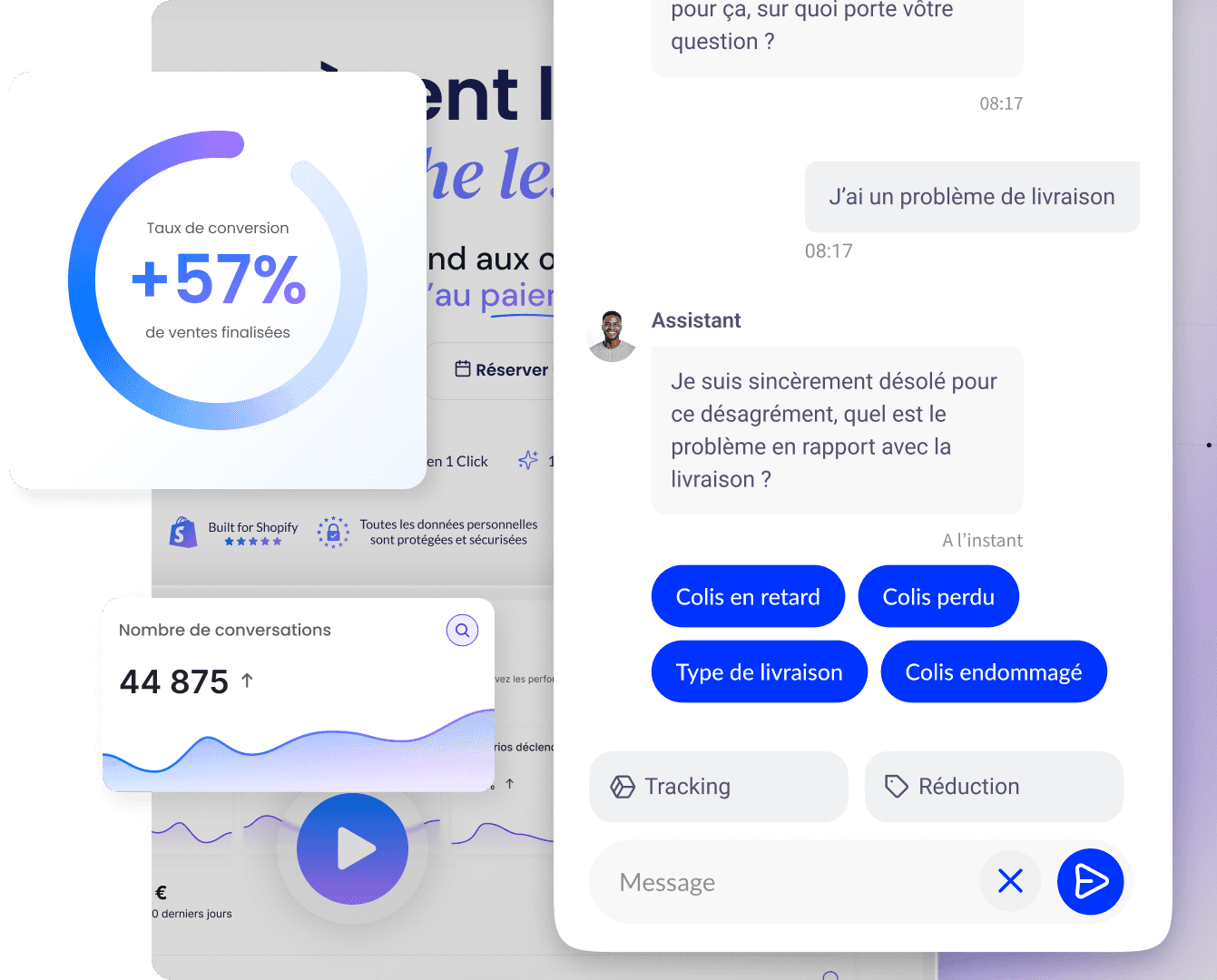
Visits from social networks often arrive with short questions and low tolerance for waiting. A conversational assistant can answer questions about delivery times, returns, and product add-ons, and direct users to relevant recommendations when your catalog is large. Qstomy integrates with Shopify to bring support, conversion, and e-commerce analytics closer together: see the AI chatbot integration on Shopify, the e-commerce chatbot and AI customer support pages, as well as the use cases suited to your segment.
Summary
Setting up a social selling channel on Shopify is less a race to the number of apps than a chain of quality: clean catalog, correct external accounts, disciplined installation, controlled synchronization, mobile testing, then measured tracking over 30 days. Three external references are enough to frame the essentials: Shopify documentation on online sales channels, Google Merchant Center product specifications for feed rigor, and CNIL guidance on ad targeting when you connect catalogs and campaigns. Keep this guide as an operational checklist; for multi-channel strategy, stay on the article social media sales channels.
FAQ
In what order should channels be installed?
Start with the one where your audience and creatives are already present. Technique follows strategy: one well-managed channel is better than three half-installed.
How long should you allow for a clean first launch?
Allow at least a few hours for a small scope if prerequisites are ready, and several days if external checks (commerce, identity) or back-and-forth on Google feeds are needed.
Can I connect several channels on the same day?
Yes if your catalog is stable and your team is available to test. Otherwise, leave one or two days between them to isolate problems (source of the error: which connector?).
Why test on mobile first?
A significant share of social traffic is viewed on smartphones: a desktop-only journey lets button, form, or cookie pop-up friction slip through.
What happens if my stock changes during sync?
Shopify sales generally update inventory, but propagation to each network can take some time. Anticipate peaks and document a customer communication rule in the event of a stockout.
I have errors in Merchant Center: where should I start?
Read the error details, fix the product listing in Shopify, wait for the feed to update, then check again. Prioritize errors that block distribution before simple warnings.
Who should respond to messages on Instagram or Facebook?
Designate one person or a small group, with a response window and canned responses for acknowledgment. In the long run, an assistant can handle the first level on the site, not necessarily on the network, depending on your rules.
Should you increase ad budget right after setup?
Not necessarily: first validate data quality and the purchase journey. A flawed catalog amplified by ads costs more than it brings in.
Go further

March 25, 2026